

Workspaces and dispatch
CTF and competitions
Dispatch your first CTF challenge (Solo local Pi vs. Swarm mode), configure advanced flag & budget controls, intervene live, inspect runtime timelines and collaboration graphs, and sync CTFd / rCTF / GZCTF competitions.
On this page
- 1. Pre-flight check: Solo vs. Swarm
- 2. Submitting your first challenge (/ctf)
- Step 1: Choose execution mode and roster
- Step 2: Write the challenge brief and attach files
- Step 3: Expand "Advanced settings" when needed
- Step 4: Dispatch
- 3. Watching live runs and intervening (/run/<id>)
- Live operator controls and Side Chat
- 4. Verifying flags, marking false positives, and writeups
- 5. Competitions workspace (/competitions)
1. Pre-flight check: Solo vs. Swarm#
Before dispatching a challenge in the CTF workbench (/ctf), complete the minimum checks for your chosen execution mode under Worker settings (/ctf/workers, bottom-left):
- Option A — Solo (Local Pi single session): Suited to quick challenges, fast validation, or local Ollama models. Open
/ctf/workers?section=local_pi, verify the localpiCLI is ready, and choose a default model — no swarm Planner is required. - Option B — Swarm (Multi-model collaboration): Suited to multi-step Web, Pwn, Reverse, and Crypto challenges. Under
/ctf/workers, check four items:- Roster: Enable at least one Worker seat bound to a tested credential and model (or select a saved Dispatch template).
- Reasoning models: Bind a working model endpoint for the Planner and run a real connection test.
- Agent credentials & version policy: Confirm logins/API keys work and CLI versions meet minimum baselines.
- Runtime: Pick Local (host CLI) or Container (
muteki-workerimage with injectable credentials).
Full setup details and remote node instructions are in Workers, runtime, and remote Runners.
2. Submitting your first challenge (/ctf)#
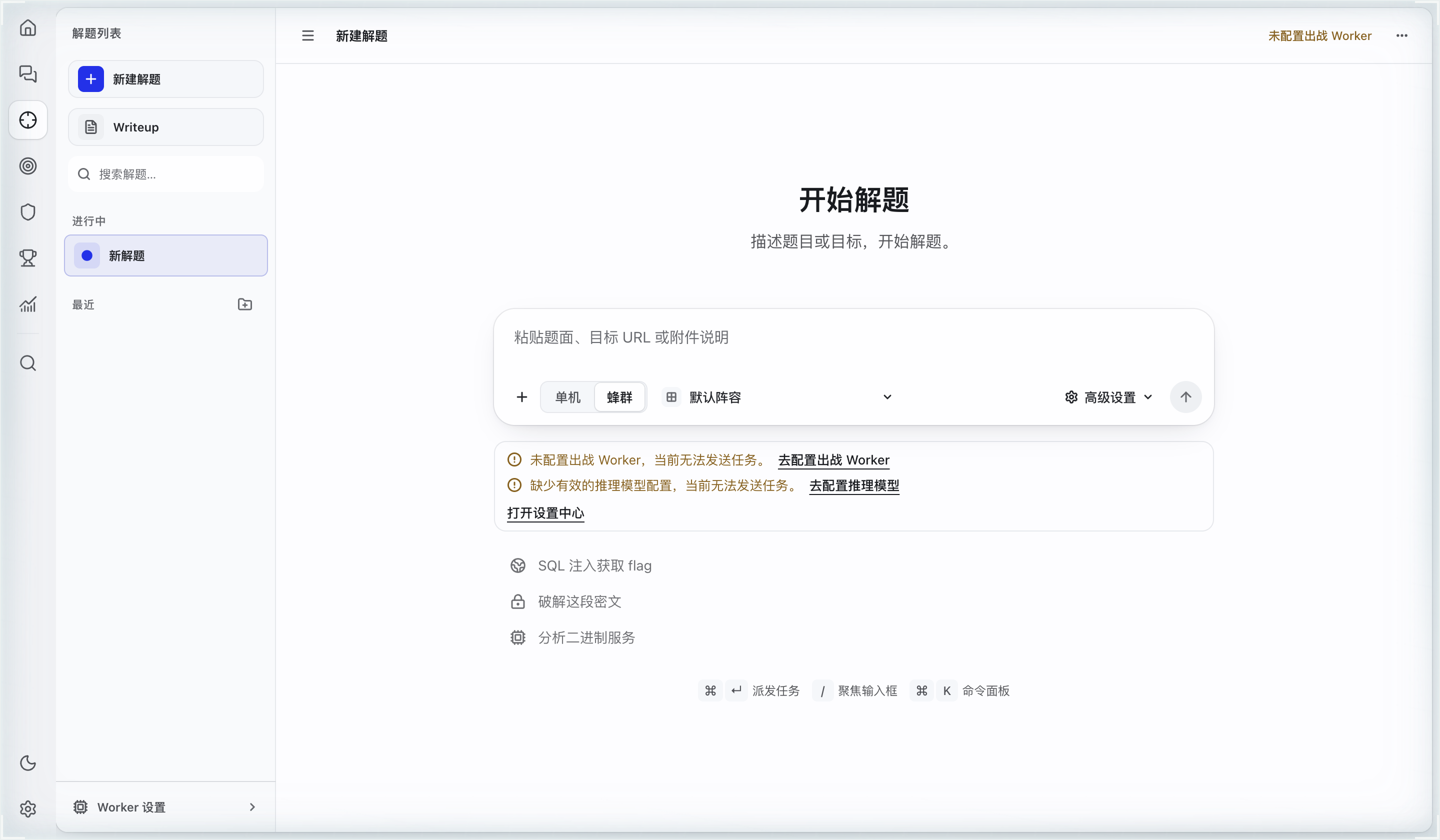
Open /ctf and select + New solve to open the challenge composer:
Step 1: Choose execution mode and roster#
- Solo / Swarm toggle: Switch between Solo (Local Pi single session) and Swarm in the bottom-left of the input bar.
- In Solo mode, pick a Pi model, credential source, and reasoning effort directly beside the toggle.
- In Swarm mode, pick the Default lineup or a saved Dispatch template (showing engine icons and seat count). Any missing seats or Planner config are surfaced cleanly below the composer with direct links to fix them.
Step 2: Write the challenge brief and attach files#
- Challenge prompt: Provide the challenge name, full description, target URL / host port, known facts, and expected Flag format. Keep verified facts separate from speculation; if no category is specified, Muteki infers it from the brief.
- Attachments: Click
+to pick files, paste from clipboard, or drag and drop anywhere onto the window. All uploaded artifacts and Worker outputs remain in the run workspace for review.
Step 3: Expand "Advanced settings" when needed#
Click Advanced settings on the right side of the composer toolbar to override execution options and per-run budgets:
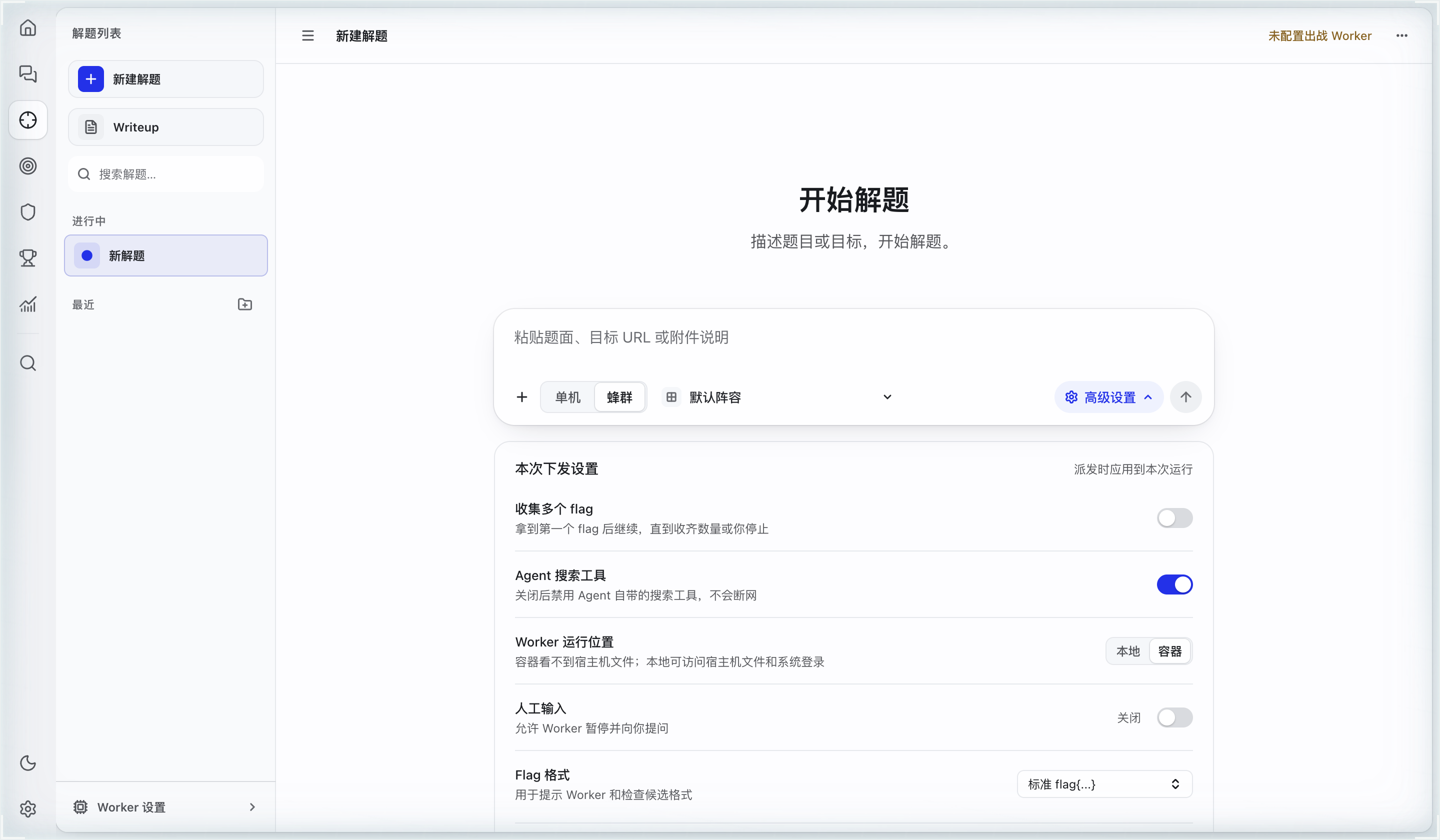
| Setting | Behavior & recommendation |
|---|---|
| Collect multiple flags | Off by default (converges once a valid candidate is verified). Turn on for multi-flag targets and specify an expected flag count when known; otherwise pair with budgets or stop manually |
| Agent search tools | Controls whether built-in WebSearch / WebFetch tools are available (applies to engines that support disabling search such as Claude and Codex; Pi has no built-in search). Disable to keep agents focused on the challenge target rather than external writeups |
| Worker location | Choose Local or Container for this run (locked to Container inside Compose or when a remote Runner node is selected) |
| Operator input | Allow Workers to pause and prompt you with structured questions when hitting CAPTCHAs or external manual steps |
| Flag format | Choose Standard braces (flag{...}), Token / plain text, or Custom wrapper (CTF{...}, etc.) |
| Per-run budget overrides | Set Wall-clock timeout (s), Max total Workers, and Cost budget (USD) for this run (0 uses defaults) |
Step 4: Dispatch#
Press Send (or ⌘↵ / Ctrl+↵) to dispatch. Press / anywhere to focus the composer and ⌘K / Ctrl+K for the command palette. First-time workspace preparation takes a few seconds — avoid clicking dispatch repeatedly.
3. Watching live runs and intervening (/run/<id>)#
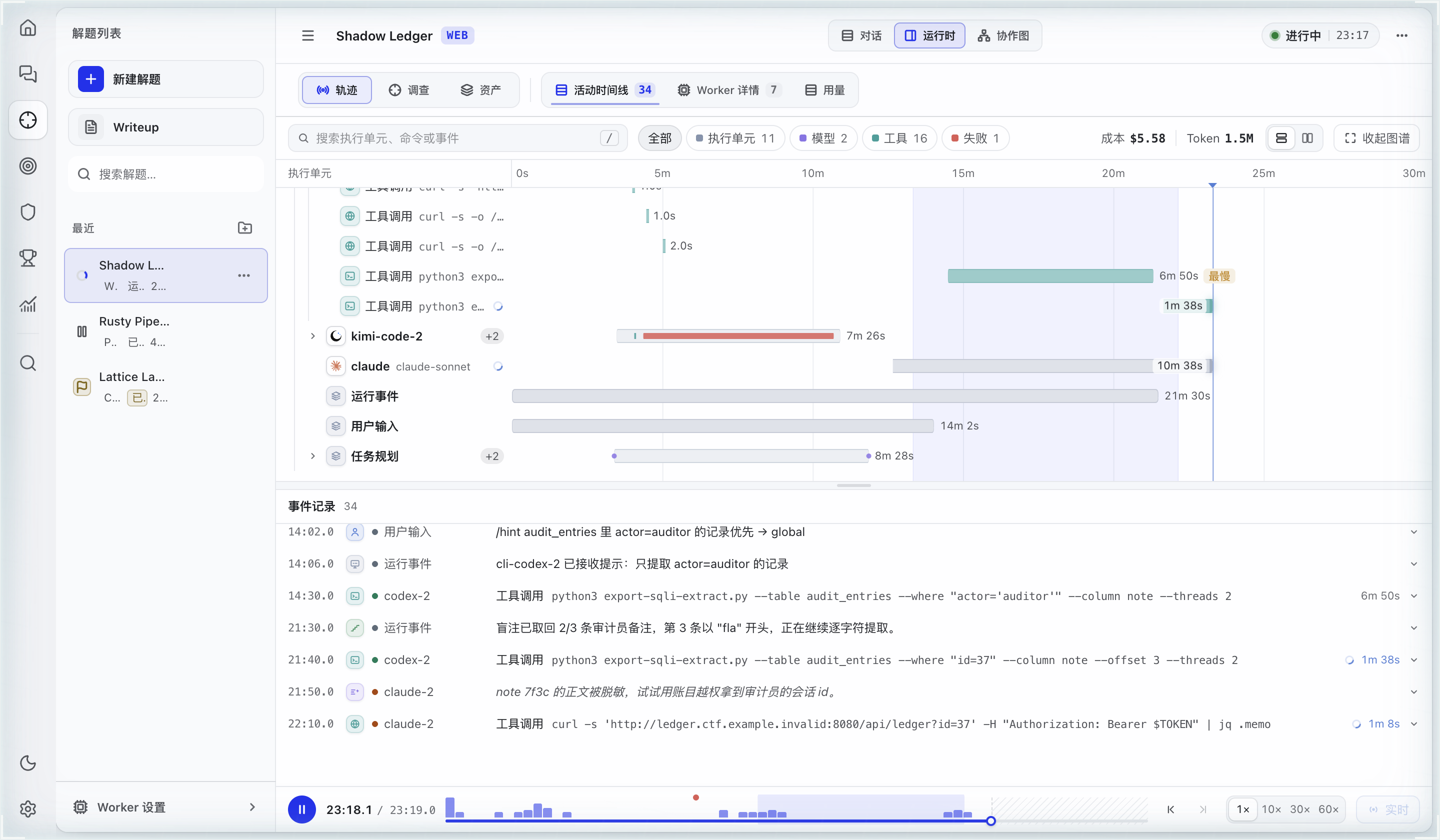
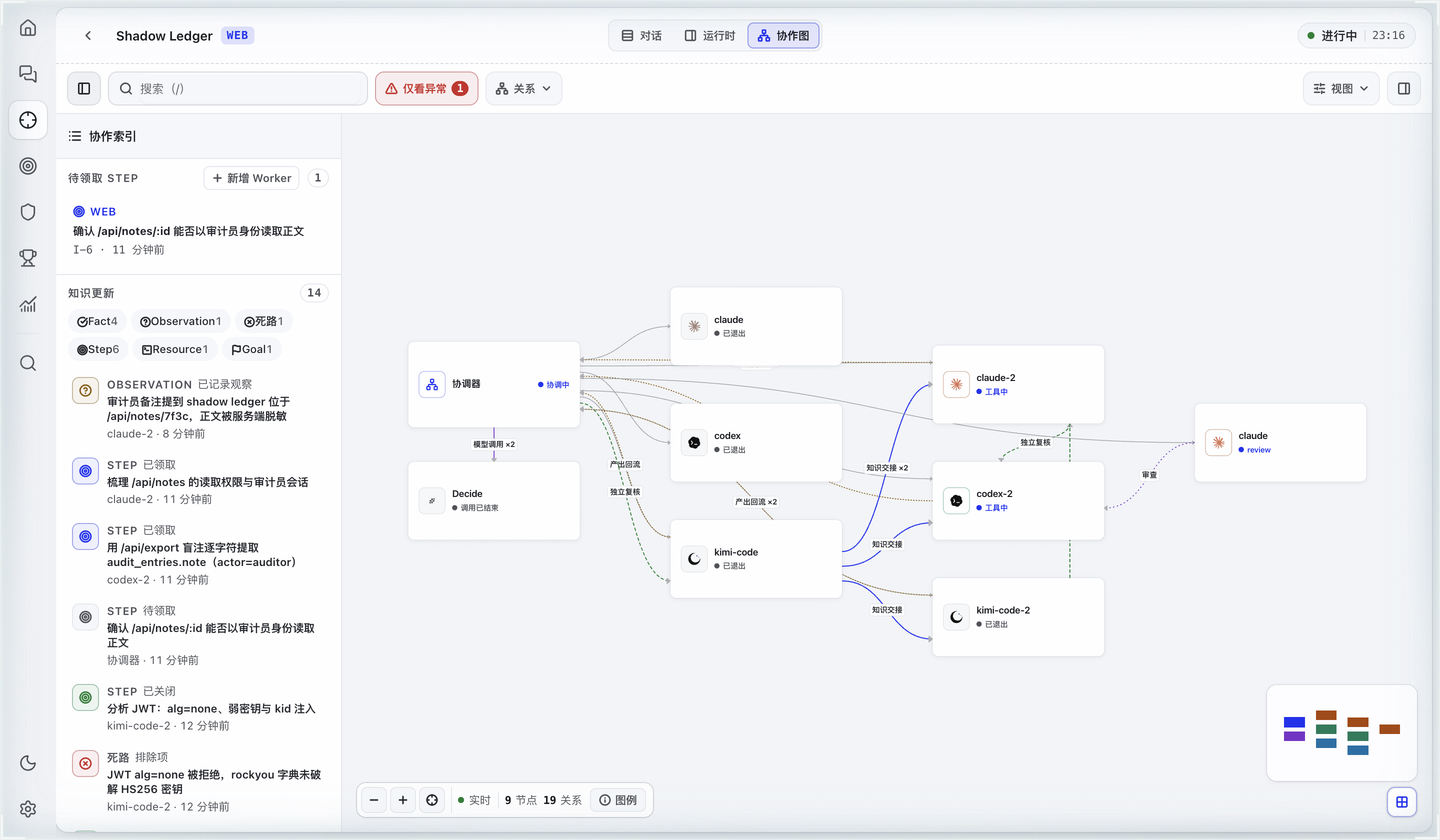
Inside a run (/run/<id>), switch between three top-bar views while keeping the right overview sidebar handy (candidate flags, online Workers, and live cost/token metrics):
- Conversation: Coordinator updates, stage breadcrumbs (
Dispatch → Reason → Explore → Collect → Finish → Respond), progress briefs, result cards, and the live steering input bar. - Runtime: Organized into Trace (
Activity timeline/Worker details/Usage), Investigation (Evidence/Knowledge/Review), and Assets (PoCs/Credentials/Routes/Directives). Inspect every Worker span and tool call with1x–8xtimeline replay. - Collaboration graph: Interactive topology view linking the coordinator, intents, admitted facts, Worker branches, and reviewer/verifier nodes.
Live operator controls and Side Chat#
Target either All solvers or a specific Worker above the composer:
| Action | Effect | When to use |
|---|---|---|
| Send message (Enter) | Sends a lightweight Hint without creating a new Step | Add clues, correct assumptions, or confirm tested paths |
| Dispatch | Creates a new formal Step and can spawn a dedicated Worker (URLs in the text may update targets) | Direct a new line of investigation explicitly |
| Ask progress | Summarizes confirmed facts, active threads, and blockers into the chat | Check status without interrupting scheduling |
| Pause / Resume | Pauses or resumes swarm scheduling | Wait for external infra or manual inspection |
| Freeze / Unfreeze | Immediately freezes active Worker processes until released | Hard intervention before risky commands |
| Stop | Ends the run and stops Workers while preserving all artifacts and logs | Scope changed or manual budget reached |
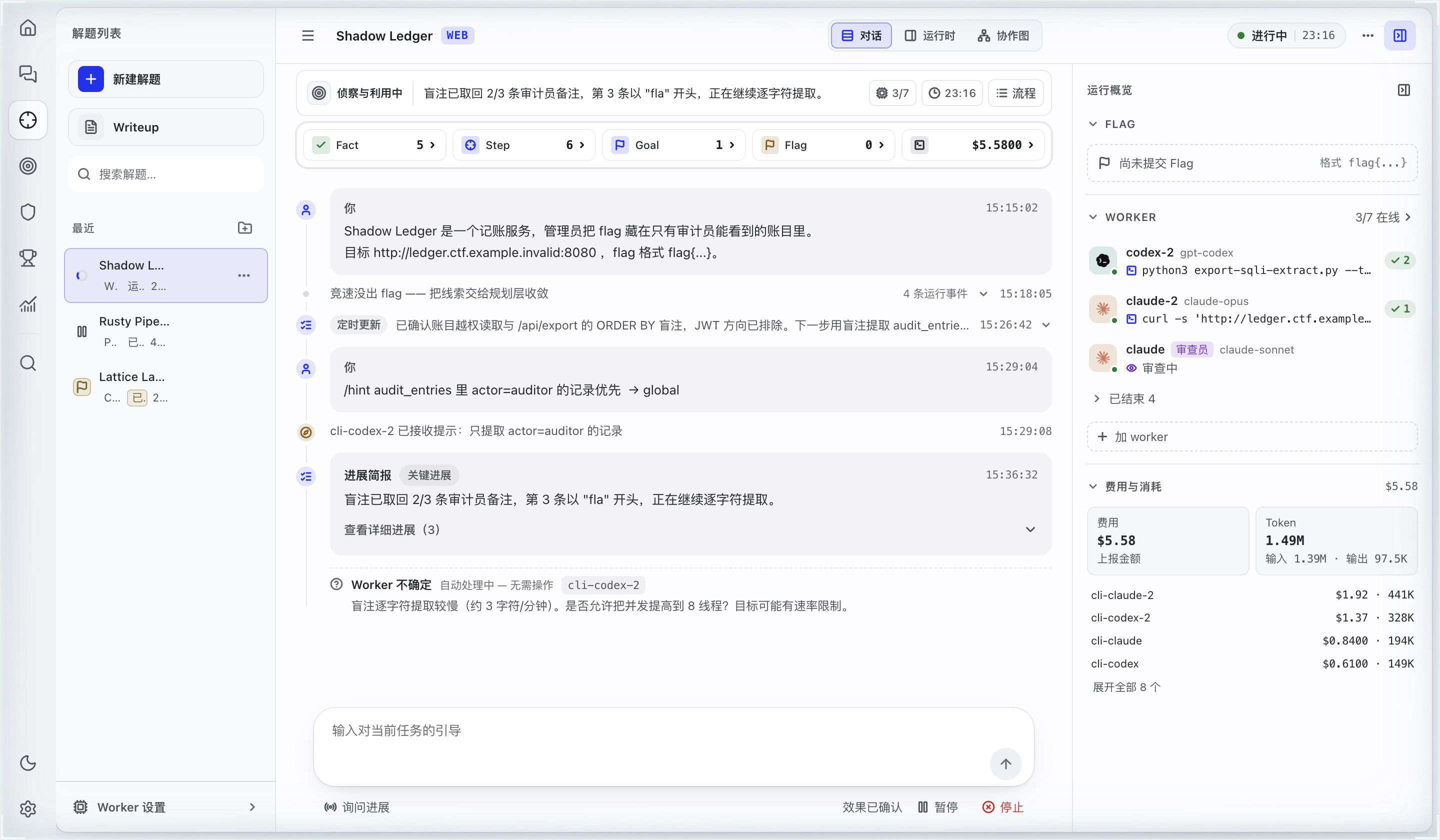
- HITL requests: When a Worker requests human assistance, answer, attach files, or reject directly in the pending card.
- Side Chat: Open a side conversation on any run (even after completion) to ask targeted follow-up questions about selected text or a specific Worker without polluting the main coordinator log.
- Sidebar folders: Challenges are grouped into Active and Recent, with custom folders and instant search.
4. Verifying flags, marking false positives, and writeups#
- Verify & mark false positive: Copy candidate flags to the scoreboard platform. If rejected, click Mark false positive (or
×next to a flag candidate) to feed the rejection back into the blackboard and reopen exploration. - Continue solving: Re-launch the swarm from a finished run while reusing all verified facts and workspace artifacts.
- Writeups: Ask follow-up questions after completion or click Generate writeup. Reports render inline, write to
sessions/<run-id>/writeup.md, and appear centrally under Writeups (/ctf/reports).
5. Competitions workspace (/competitions)#
The Competitions workspace is visible by default in Desktop mode; in Web mode, enable Show chat and competition workspaces under Settings → Appearance → Interface.
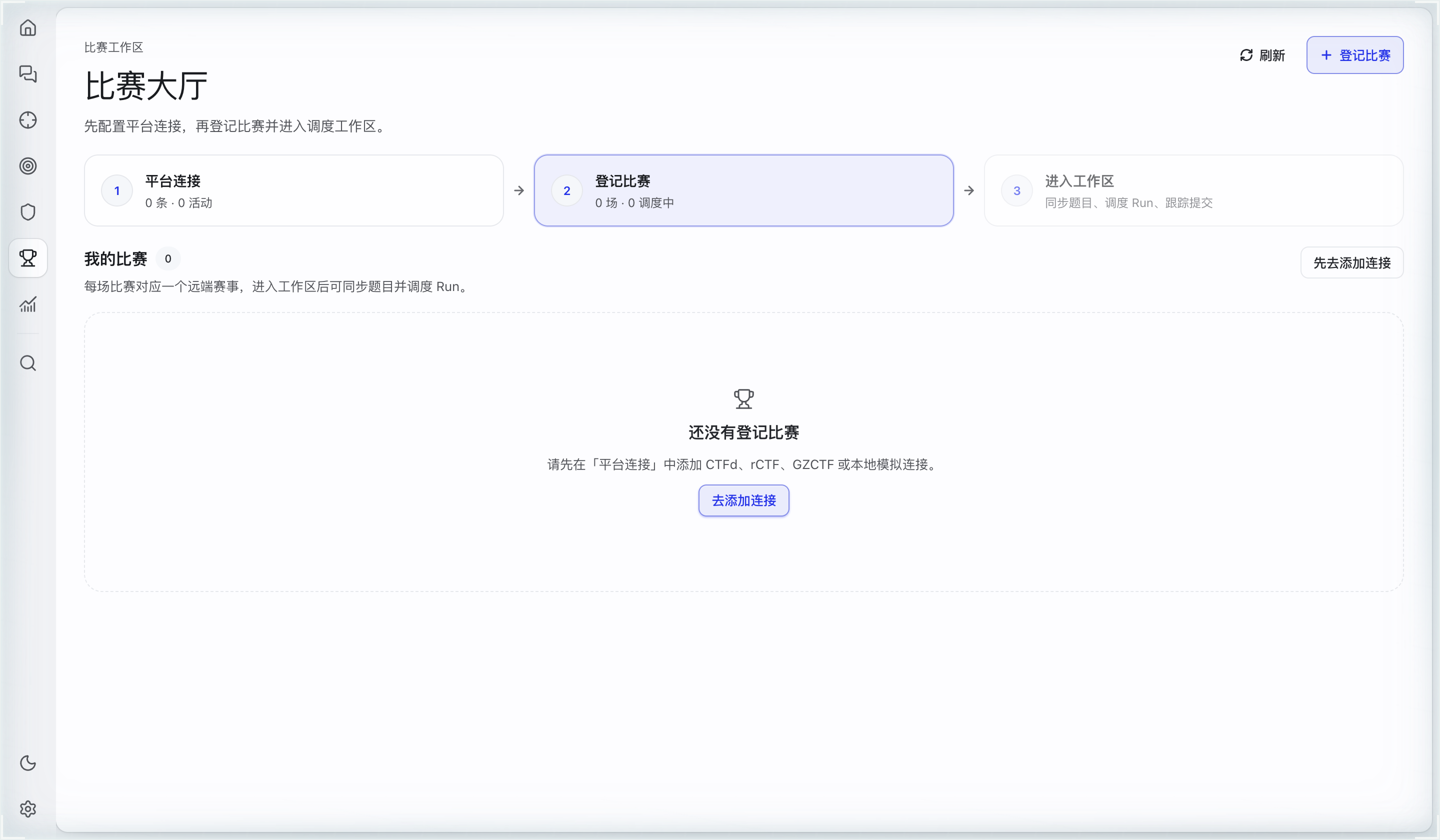
- Create a platform connection: Add CTFd, rCTF, GZCTF, Browser session (
generic_browser), Local mock, or custom extension platforms. - Authenticate & probe: Provide platform URL, account, and API token (or
storageStatecookies JSON for browser sessions), then click Probe to verify identity, version, clock skew, and supported capabilities (sync,artifacts,dynamic_instances,submit,scoreboard). - Register competition: Link the connection, enter the remote competition ID and title, and set Automation mode (
assisted/auto) plus Max concurrent runs (default3). - Sync & dispatch: Sync challenges and attachments, dispatch individual challenge runs from
/competitions/<id>, review candidate flags, and track remote submission verdicts.