

Configuration and runtime
Data, usage, and operations
Usage and cost tracking, conversation archives, host history import, automatic task retention, sharing, updates, and in-place domain module recovery.
On this page
- 1. Usage and cost dashboard (/usage)
- 2. Conversation archives, history import, and sharing
- Archives (/settings/archives)
- Import history (/settings/import)
- Conversation snapshots (/share/<id>)
- 3. Security task retention rules
- 4. Updates, diagnostics, and domain-module recovery
- Updates (/settings/update)
- Operations (/settings/operations)
- Desktop and connection (/settings/desktop)
1. Usage and cost dashboard (/usage)#
Enable all workspaces or navigate directly to /usage to inspect real token consumption, estimated cost, and subscription quota windows:
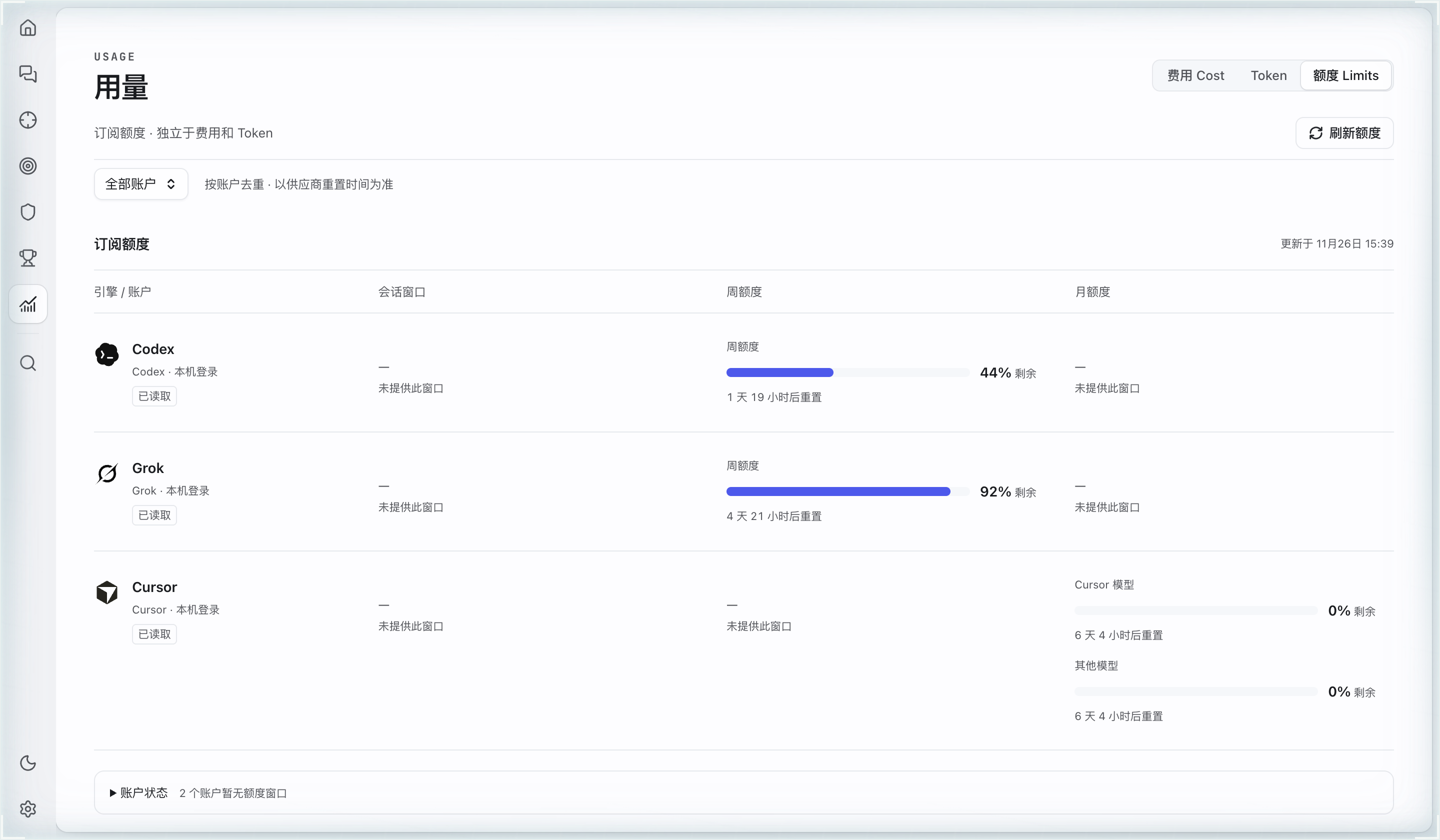
- Three views & breakdown: Switch between Cost, Token, and Limits in the top-right to view usage by engine, model, time window, and subscription reset countdowns.
- No fabricated numbers: Cost estimates use the pricing catalog and custom per-model rates maintained under Settings → Agents and providers → Model pricing. When an engine does not report usage or a model has no known price, Muteki marks it explicitly as unreported/unknown instead of guessing or filling zeros.
- Cursor quota: On macOS, authorizing Keychain access surfaces Cursor account usage limits alongside other subscription providers.
2. Conversation archives, history import, and sharing#
Archives (/settings/archives)#
- Threads settled automatically by Settings → Chat → Thread settlement or archived manually move to Archives with full history preserved.
- Search archived conversations by title, project path, or keyword, read full timelines read-only, or click Restore to bring a thread back to the sidebar. Restoring an archive does not resume execution.
Import history (/settings/import)#
- Open Settings → Import history to scan native Claude Code or Codex conversation stores on the service host read-only and import selected threads into Muteki. Muteki never overwrites or deletes the original host CLI history files.
Conversation snapshots (/share/<id>)#
- Export read-only snapshots from the Chat workspace menu for review or handoff (containing conversation/artifact records only, without private service secrets).
3. Security task retention rules#
To keep workspace disks from filling up during high-volume CTF or pentest runs, CTF and Pentest manage independent retention policies:
- Locations: CTF → Worker settings → Task retention (
/ctf/workers?section=retention) and Pentest → Worker settings → Task retention (/pentest/workers?section=retention). - Two-stage lifecycle:
- Auto-archive: Archives runs after
Ndays of inactivity (default15days); archived runs remain recoverable from the workspace archive view. - Auto-delete: Permanently deletes archived runs after
Mdays of inactivity (default30days; when auto-archive is enabled, delete days must exceed archive days). Deletion removes session records and artifacts irreversibly.
- Auto-archive: Archives runs after
4. Updates, diagnostics, and domain-module recovery#
Updates (/settings/update)#
- Displays the connected service version (such as
v0.5.2) and release channel, and lets Desktop and managed Web deployments check for updates and apply releases. (Docker Compose deployments update by switching image versions.)
Operations (/settings/operations)#
Chat, CTF (single-task and competitions), Pentest, and SRC run as isolated domain modules inside the Rust service so a failure in one module does not disable the others or unmount global navigation:
- Metrics & receipts: Inspect background queue depth, live streams, idempotent command receipts, and startup recovery previews.
- Domain module recovery: View
ready/unavailable/disabledstate and error details for eachbuiltin.*module. Once the underlying issue (such as Docker or disk permissions) is fixed, click Retry (POST /api/domain-modules/{id}/retry) to recover the module in place without restarting active jobs in other workspaces. - Maintenance cleanup: Clear stale temporary directories, expired caches, and obsolete preview tickets safely.
Desktop and connection (/settings/desktop)#
Visible in the macOS Muteki.app desktop client only: shows the connected service endpoint and verifies native host capabilities including the desktop browser panel, interactive terminal, system notifications, and Keychain access.